When you need one fact from fifty agreements — every renewal date, every liability cap, every governing law — reviewing them one at a time is the wrong tool. Tabular Review extracts the answers into a table, one row per document and one column per question.
Create a review
- Open Tools → Tabular Review in the sidebar and select New review.
- Add your documents. Drag and drop them, or click to browse. PDF and DOCX are accepted here.
- Choose a starting point — a review template that sets up the extraction columns for you — then name the review and pick the workspace it belongs to. Select Blank review to define every column yourself.
- Select Create review, then Extract. Each cell fills in as its answer is produced.
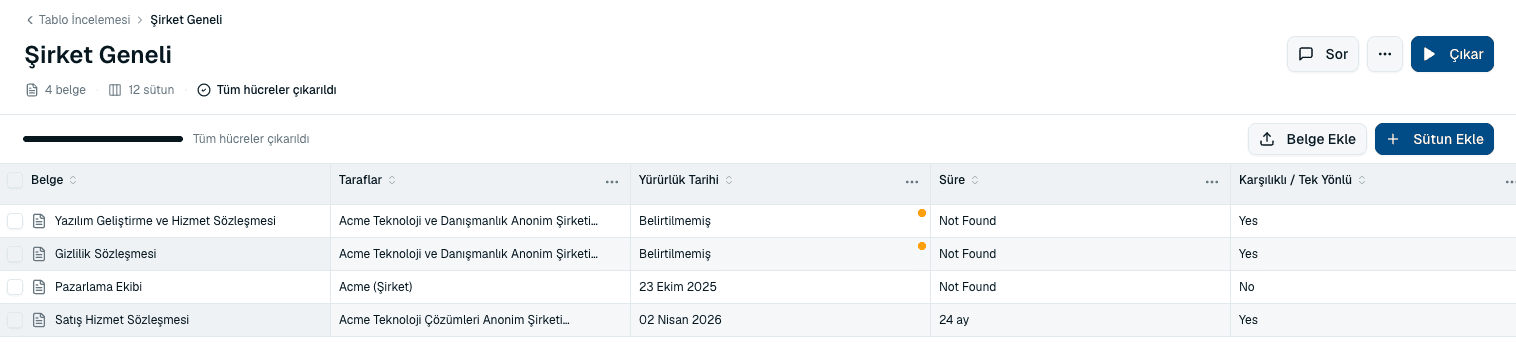 Source screenshots show the Turkish interface.
Add a column
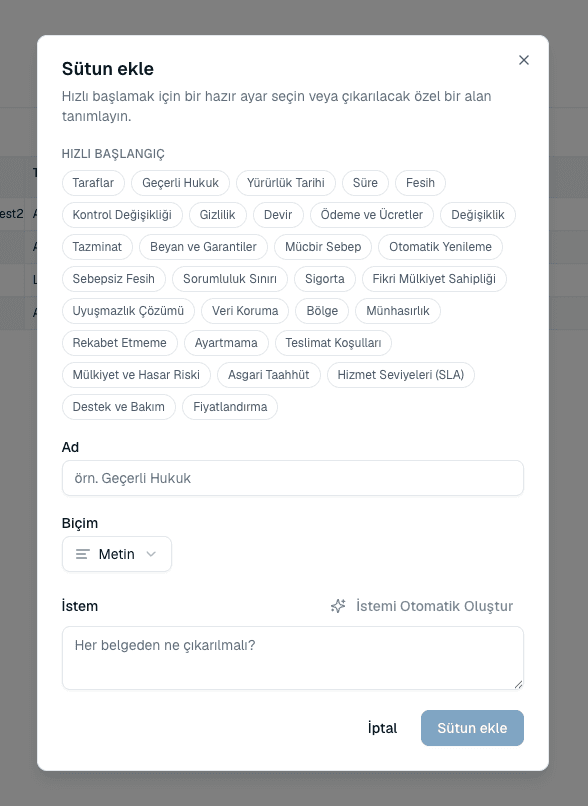
A column is one question asked of every document. You can start from a preset or write your own.
- Select Add Columns in the toolbar.
- Pick a preset from the quick-start list, or enter a Name for a custom column — something like “Governing Law”.
- Choose the Format the answer should take, then write the Prompt describing what to extract. Auto-Generate Prompt drafts one from the column name if you would rather start from something.
- Select Add column. It is answered against the documents already in the review, without re-running the existing columns.
Answer formats
Setting a format is what turns a readable table into a sortable one. Nine are available:
- Text and Bulleted list for open answers.
- Number, Percentage, Monetary amount, Currency and Date for values you want to sort or compare.
- Yes / No for a straight answer, and Tag for a fixed set of labels you define.
Reading the results
Cells are flagged so you can scan a column and see where the problems are without reading every answer:
- Standard
- The answer is in line with what you would expect.
- Neutral
- Nothing to flag either way.
- Needs attention
- Worth a closer look before you rely on it.
- Problematic
- A term that is likely to cause you difficulty.
Common questions
Can I add a column after the review has run?
Yes. New columns are answered against the documents already in the review, and the existing columns are not re-run.
Where do the uploaded documents end up?
In the review's own folder in Files, so they remain available in your workspace after the table is finished.
I got a message that a run is already in progress.
One extraction runs at a time per review. Wait for the current run to finish before starting another — added documents and columns will be picked up by the next run.
Extraction stopped and mentioned a quota.
Your plan's AI usage allowance has been reached. The review and its documents are kept; extraction resumes once your quota does.
About this guide
Imported from the application Help Center on 23 September 2026. The original content date is preserved. Product workflows and screenshots have not been revalidated against current account permissions and availability.