When you find a prompt that produces exactly the analysis you want, saving it means never reconstructing it. The Prompt Library holds your own prompts, the ones your organization shares, and a curated set Harmonity provides — and you can drop any of them straight into a chat.
Find a prompt
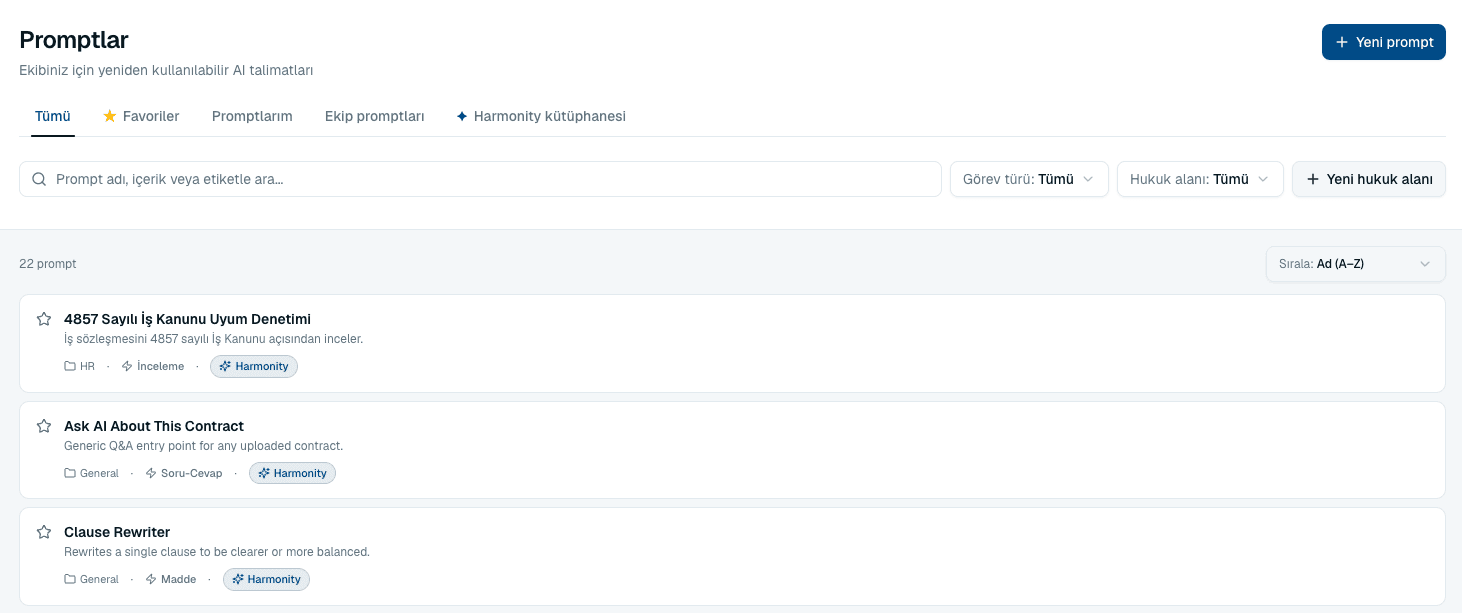
Open Library → Prompt Library. Four things narrow the list:
- Tabs
- All, Favorites, My prompts, Team prompts and Harmonity library. Team prompts can be narrowed further to one workspace or to company-wide.
- Search
- Matches a prompt's name, its content and its labels — so you can find one by a word you remember from inside it.
- Task type and Legal area
- Two independent filters: what the prompt does, and which area of law it belongs to.
- Sort
- Recently updated, Most used or Name (A–Z). Most used surfaces what has proven itself.
The seven task types
Every prompt carries one task type, which is what makes the library browsable by what you are trying to do:
- Generation
- Generate a full contract from scratch.
- Drafting
- Write content within an existing contract.
- Clause
- Generate or rewrite a specific clause.
- Review
- Analyze an existing contract.
- Q&A
- Ask questions about contract content.
- Summary
- Create summaries.
- Translate
- Translate between languages.
Save a prompt
- In the Prompt Library, select New prompt.
- Give it a Name that says what it produces, an optional Description for teammates, and the Prompt text itself.
- Choose a Legal area and a Task type, and add Labels — free-form tags like
kvkk,ndaorsales-teamthat search will match. - Choose under Save to who it is for, then save. Tick Add to favorites after saving if it is one you will use often.
Who can see a prompt
- Private
- Only you can see and use it. The right default while you are still refining the wording.
- Workspace
- Members of that workspace can see and use it.
- Company-wide
- Everyone in the company. Only company admins and managers can create these.
- Harmonity
- The curated set provided with the product, available to everyone.
Common questions
How do I use a saved prompt?
Open the Prompt Library from the assistant's Prompts control and select one — it is inserted straight into the message box, where you can edit it before sending.
I cannot create a company-wide prompt.
Only company admins and managers can. Save it to a workspace instead, or ask an administrator to publish it company-wide.
What is the difference between a legal area and a label?
A legal area is a single filterable category. Labels are free-form and you can add as many as you like — use the legal area for filing and labels for everything else you might search by.
What happens to prompts if a legal area is deleted?
They stay in the library and move to Uncategorized, so nothing is lost.
About this guide
Imported from the application Help Center on 23 September 2026. The original content date is preserved. Product workflows and screenshots have not been revalidated against current account permissions and availability.