Files is the document library for every workspace you belong to. It behaves like a familiar file manager — folders, drag to move, breadcrumbs — with a few filters specific to contract work.
How Files is organized
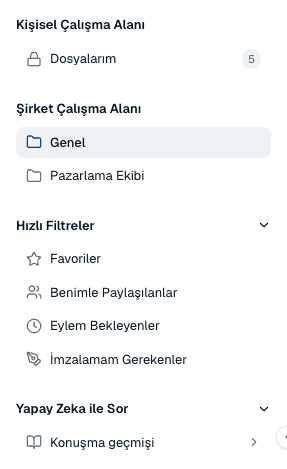
The left rail of the Files screen has four sections:
- Personal Workspace
- My Files — documents only you can see. Nothing here is visible to colleagues.
- Company Workspace
- One entry per workspace you belong to. This is where shared contracts live.
- Quick Filters
- Cross-cutting views that ignore folder structure and show documents by their state.
- Ask with AI
- Conversation history — earlier questions you have asked about your documents.
Quick filters
- Favorites
- Documents you have starred. The fastest way back to a contract you are working through over several days.
- Shared with Me
- Documents a colleague has shared with you directly.
- Awaiting My Action
- Documents where something is waiting on you — most often an approval decision.
- My Turn to Sign
- Documents that have reached you in a signing sequence.
Work with folders
- Select New Folder in the header, name it, and save. Folder names can be up to 255 characters.
- Drag a document onto a folder to move it, or use the breadcrumbs at the top to move back up a level.
- Use the row menu on a folder to Rename or Delete it.
Document actions
- Rename
- Change the document name without opening it. Names can be up to 255 characters.
- Share
- Opens a dialog with a copyable link and the list of participants, so you can add someone directly.
- Add to favorites
- Stars the document so it appears under Favorites.
- View details
- Opens a panel with the document's metadata and status without leaving the list.
- Delete
- Removes the document permanently. You are asked to confirm, and it cannot be undone.
Common questions
What is the difference between Personal and Company Workspace?
My Files under Personal Workspace is private to you. A company workspace is shared with everyone who is a member of it. If in doubt about who can see a document, check which section it is filed under.
Can I select several documents at once?
Yes. Select multiple documents to move or delete them together — the delete confirmation names how many documents are about to be removed.
I deleted something by accident. Can I get it back?
No. Deleting a document or folder is permanent and there is no recycle bin, which is why every delete asks you to confirm first.
About this guide
Imported from the application Help Center on 23 September 2026. The original content date is preserved. Product workflows and screenshots have not been revalidated against current account permissions and availability.