Harmonity brings contract drafting, AI review and your document library into one place. This article walks through the three parts of the interface you will use constantly — the sidebar, the top bar and the dashboard — so the rest of these guides make sense from the first line.
The sidebar
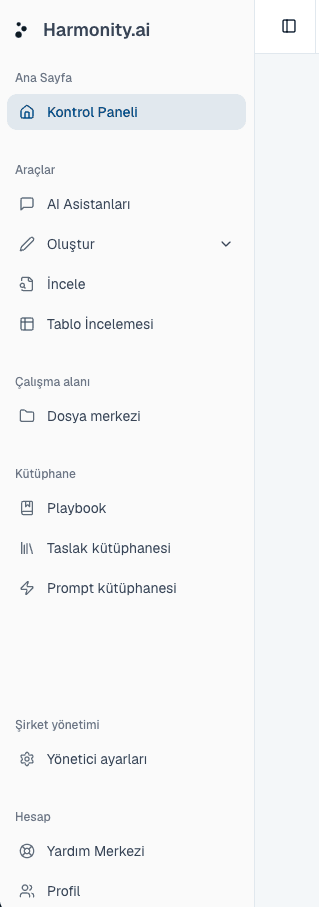
The sidebar on the left is grouped by what you are trying to do, not by feature name. Working tools sit at the top, reference material in the middle, and administration at the bottom.
- Home
- Dashboard — where you land after signing in, and the fastest route back to recent work.
- Tools
- The four working surfaces: AI Assistant, Drafting tool (with Generate contract and Upload document beneath it), Contract review, and Tabular Review.
- Workspace
- Files — every document in the workspaces you belong to, arranged in folders you control.
- Library
- Reusable material you build once and apply many times: Playbook, Template Library and Prompt Library.
- Company management
- Admin settings — users, workspaces and billing. This group only appears if you are a company admin, a company manager, or a workspace manager.
- Account
- Help Center and Profile, kept at the bottom so they stay out of the way of daily work.
The top bar
- Page title
- On the left, showing which screen you are on. Inside a document it becomes the document name, which you can click to rename.
- Getting started
- A progress ring that opens your onboarding checklist. It disappears once all three steps are done.
- Dark mode
- Switches the interface between light and dark. Your choice is remembered on this device.
- Notifications
- Opens your notification feed and carries the unread count. Comments, approvals, tasks and document activity all arrive here.
- Your avatar
- Opens a menu with Account settings, Notifications, Files and Log out.
The dashboard
The dashboard answers one question: what needs my attention? It fills in as you use Harmonity, so a brand-new account will look sparser than the description below.
- Welcome banner
- Greets you by name and offers a single button through to Files.
- Statistics
- Four counts — total documents, in review, signed, and added this month. These stay hidden until you have documents moving through an approval workflow, so an empty account is not cluttered with zeros.
- Recent documents
- Your most recently updated documents, with View all documents through to the full list.
- Approval workflow
- Where your contracts sit across every approval status, and which workspace each belongs to.
- Recent activity
- Contracts you have recently reviewed, drafted or uploaded, with Upload & review and Generate contract to start something new.
Your first three steps
New accounts get a Getting started checklist in the top bar. It tracks three actions, and completing them is the shortest path to seeing what Harmonity does:
- Upload your first contract. Bring an agreement in from Files, or straight into Contract review.
- Run an AI review. Let the AI read it and flag risks and missing clauses.
- Invite a coworker. Contracts move faster when the people who approve them are already here.
Common questions
Do I have to upload a document to try Harmonity?
No. Drafting tool → Generate contract builds a full draft from a short description, so you can see the editor and the AI review working without uploading anything.
Why can't I see Company management in the sidebar?
That group only appears for company admins, company managers and workspace managers. If you need it, ask a colleague who administers your company to change your role.
Can I use Harmonity in Turkish?
Yes. Change the interface language in Profile. The AI's answer language is set separately, so you can work in a Turkish interface and still ask for an English review.
My dashboard is mostly empty. Is something wrong?
No. The statistics row and the approval panel only appear once you have documents moving through a workflow. Upload or generate a contract and they fill in.
About this guide
Imported from the application Help Center on 23 September 2026. The original content date is preserved. Product workflows and screenshots have not been revalidated against current account permissions and availability.